Using SBGrid
This assumes that you already have SBGrid installed on your system - otherwise, please see the Installing SBGrid Software section with detailed installation instructions.
Step 1: Check If SBGrid Is Already Installed
The SBGrid software collection is accessible from the /programs/ path and is run from the command line in a terminal. To initialize the SBGrid shell environment:
Open a terminal window:
- macOS: Open Terminal.app (Applications → Utilities → Terminal)
- Linux: Open your default terminal application
New to using the terminal? See our basic command line resources.
Run ls /programs/sbgrid*shrc
- If this returns
/programs/sbgrid.cshrc /programs/sbgrid.shrc, SBGrid is installed. - If this returns something else, such as "No such file or directory" or "no matches found", SBGrid has not been installed correctly; please see Installing SBGrid Software.
Step 2: Check if SBGrid Is Already Available (initialized)
On the terminal window, run: sbinfo
If you see information about SBGrid, your environment is already set up.
If you see "command not found", continue to the next steps.
Step 3: One-Time SBGrid Initialization (Temporary)
- Check which shell you are using by typing
echo $SHELLand pressing enter (your shell is the program that interprets commands in the terminal). You will see output similar to one of the following: /bin/bash→ bash shell/bin/zsh→ zsh shell-
/bin/tcshor/bin/csh→ (t)csh shell -
Source the appropriate SBGrid configuration file for your shell:
For bash/zsh:
For (t)csh:
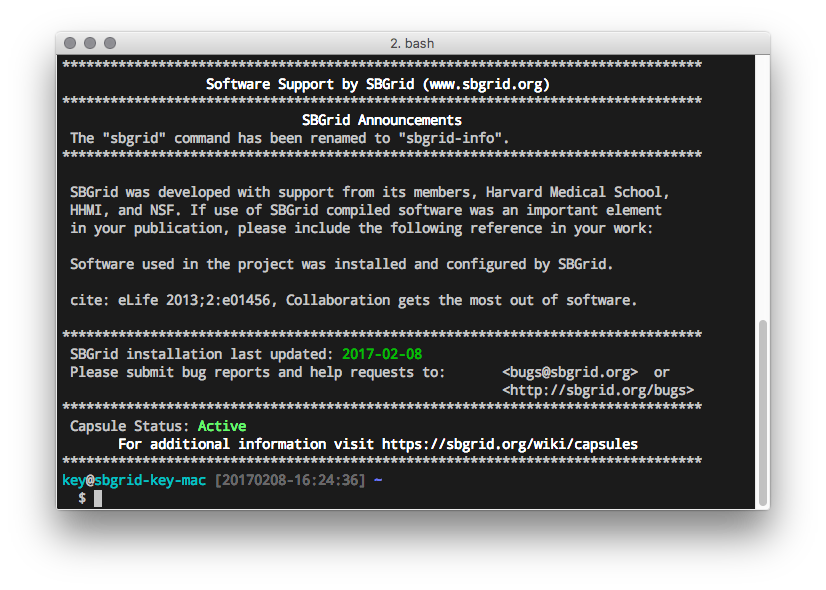
This command will initialize SBGrid. On initialization, you should see the SBGrid welcome message. If not (if there is a source: no such file or directory error message or similar), SBGrid is not installed. Go to the Installing SBGrid Software section to learn how to install SBGrid.
If you only want to use SBGrid for the current terminal session, run:
This enables SBGrid until you close the terminal. You will need to repeat it every time you open a new terminal for using SBGrid.
Setting an alias
If you would prefer to load the SBGrid environment on demand and not have to type the command above, you can set an alias to a shorter command of your choosing.
For example, for bash in ~/.bashrc :
alias sbg='source /programs/sbgrid.shrc'
For tcsh in ~/.tcshrc, this would be
alias sbg 'source /programs/sbgrid.cshrc'
Step 4: Automatic SBGrid Initialization (Recommended)
To make SBGrid available every time you open a terminal, you must add one line to your shell's startup file.
If You Are Using bash
Edit the file ~/.bashrc:
On a terminal window, run: nano ~/.bashrc
Add this line at the end of the file: source /programs/sbgrid.shrc
Save and exit nano:
- Press CTRL + O → Enter (save)
- Press CTRL + X (exit)
To apply the change, run: source ~/.bashrc (you only have to run this after making a change, not for every new terminal session you start)
If You Are Using zsh (Default on newer macOS)
Edit the file ~/.zshrc: nano ~/.zshrc
Add this line: source /programs/sbgrid.shrc
Save and exit:
- CTRL + O → Enter
- CTRL + X
Apply changes: source ~/.zshrc (you only have to run this after making a change, not for every new terminal session you start)
If You Are Using (t)csh
Edit ~/.cshrc or ~/.tcshrc: nano ~/.cshrc
Add: source /programs/sbgrid.cshrc
Save and exit:
- CTRL + O → Enter
- CTRL + X
Apply changes: source ~/.cshrc (you only have to run this after making a change, not for every new terminal session you start)
Step 5: Verify the Setup
On a terminal window, run (remember to initialize SBGrid before if you have not configured the automatic initialization): sbinfo
You should now see SBGrid information confirming that the environment is active.
Step 6: Using Software Titles Installed with SBGrid
After installation, existing titles in SBGrid can be launched as you have done before outside SBGrid, with no additional configuration!
See how to add, update, and remove titles, and manage your installation here.
For Python titles, there are cases where the developer's instructions include conda activate $environment steps, or using python script.py. In the SBGrid environment, the conda commands are skipped, and Python scripts are called directly: script.py instead of python /path/to/script.py
Step 7: Change Software Versions
In SBGrid, you can have different versions of any title installed and ready to be used. Check how to manage different software versions installed through SBGrid.
Common Problems & Troubleshooting
Check your installation status
Check your CLI version: sbgrid-cli -V
Check SBGrid's latest version here.
Check for manual updates of your installed titles: sbgrid-cli updates
Try running sbinfo:
sbinfo: command not found means:
- SBGrid is not initialized
- Re-run the
source /programs/sbgrid.shrccommand - Confirm you edited the correct startup file for your shell
Changes to .bashrc (or equivalent) didn't take effect:
- Make sure you initialized (sourced) the startup file after editing
- Try opening a new terminal window
/programs/sbgrid.shrc: No such file or directory:
- SBGrid may not be installed on this system: learn how to install SBGrid
- Contact your local system administrator or SBGrid support
Need help?
If you run into issues or are unsure about any step:
- Contact your local SBGrid administrator
- Reach out to SBGrid support
- Check out SBGrid's video tutorials